

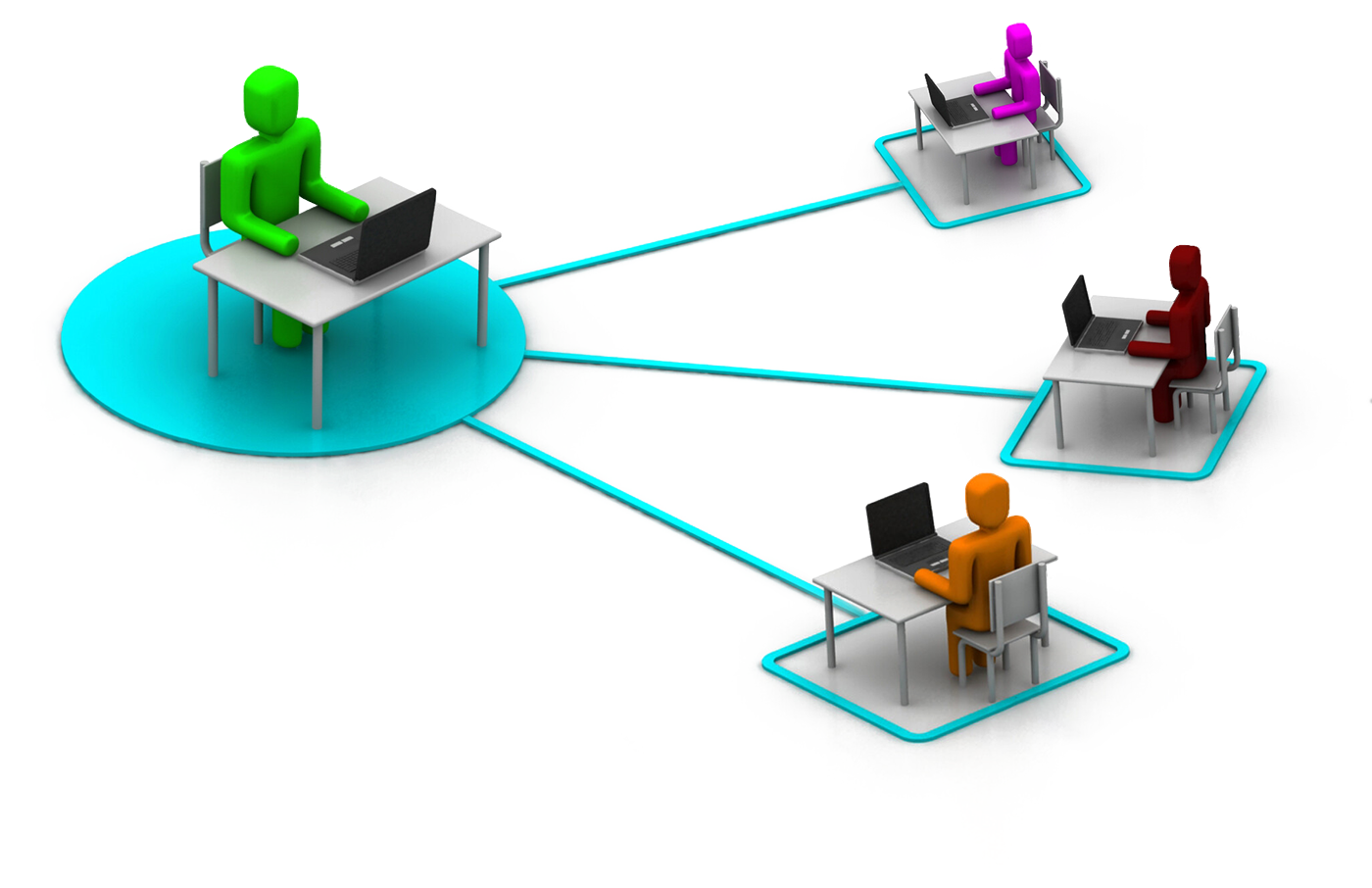

The training succeeds if the participants have a similar level of knowledge, and ideally if they know each other and work together on a daily basis.
For example, while enlisting people with medium experience, we advise You to resist the idea to add a complete beginner or a veteran (on the basis of “let him go, let him listen, he’ll always get something out of it”).
Altrough the trainer will do everything to find the middle ground, the result will be usually that the veteran will feel like a waste of time, and the beginner will get confused and dishartened.
Sending a leader and his team together to a training session can result in a complete silence from the all participants, unfortunately. Naturally, we have meet the exceptions, with good boss-team relations, loose atmosphere and good interactions. Yet, such unfortunate situations tend to occur, so You might want to take it under considerations.
This is not a feature for Your convenience – it’s a crucial element of an online training setup. With so called “dual-head”, You have two monitors connected to one computer, one with a conferencing app (e.g. Zoom) where You can see a trainer and his presentation, and the other one for Your app to practice.
We recommend against taking an online training with one display only. You will have a hard time constantly switching back and forth between the presentation and the task at hand.At 8:45 a.m., it’s best to sit down, take a sip of coffee and focus on the training right away. To make sure your computer is ready for work, it’s best to check the configuration of your equipment and software the day before. Thus, it is worth checking whether the conference program (e.g. Zoom) connects to the network, whether the microphone and headphones work, etc.
It is possible to arrange a short (free) test call the day before the training, just to be sure.
Before the training You will receive a link to download training assets, necessary for exercises. It is best do download of the training materials earlier, move to convinient location on Your disk, decompress. Downloading it at the very last moment always causes an unnecessary distraction.
At least two displays are necessary for effective online training. The first screen – for the trainer and his presentation. The second for the trainee and the application he is working with.
This configuration is not very different from a traditional stationary training, where there are also two screens: the participant’s laptop, and a large projector image on the wall.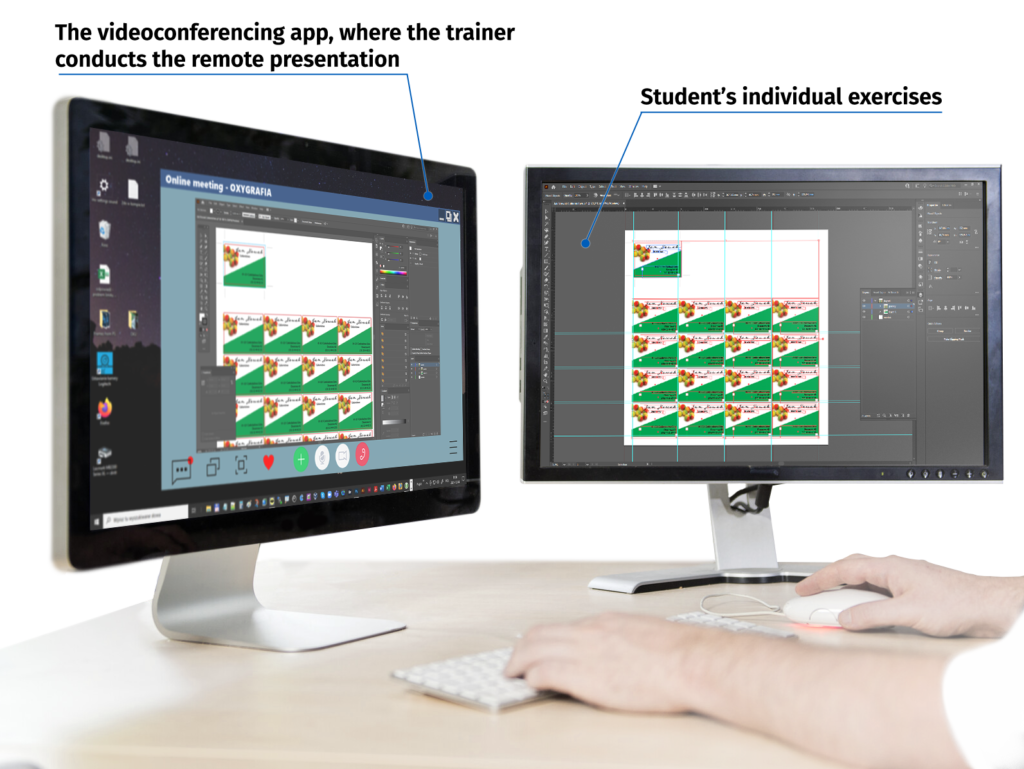
A stationary desktop or a laptop, PC or MAC, with two displays. Having a mouse is much more comfortable 🙂
A quick broadband connection works best. It is also worthwhile to connect the computer via LAN cable, not WiFi.
Make sure which applications will be needed during the training, install them, and check if they actually launch.
Any cheap mirophone and headphones will get the job done. But be triple sure to correctly configure and test the audio equipment in a conferencing app (audio settings in Zoom / Teams).
The detailed information on technical issues is available here:
Remote working is increasingly gaining popularity. Like any new tool, you have to learn how to use it, how to configure it, and practice using it on a daily basis. But then you enjoy unparalleled benefits: video meetings without travel, time savings, multi-person video conferencing, working from anywhere.
Get in touch by email or by using the contact form.
Describe your training needs: what you want to learn? How many people do you plan to enroll in the training? Do you prefer online or onsite training?
Describe in your own words:If you are not sure which course to choose, or want to customize the content, we are happy to help tailor the training to your needs.
If you have more questions, need advice, or just want to get to know the trainer first, we can arrange a short, no-cost organizational meeting.
It will also be an opportunity to try out how the remote meeting works and how do You find it as a form of communication.
Make sure that the dual-monitor computer is ready for use, that all necessary software is installed on it, that a conference program (e.g. Zoom, Teams) is running, and that a microphone and headphones are properly configured. More on technical details.
Don't forget to download and decompress the training files; We will send the link prior to the training.

Etiam magna arcu, ullamcorper ut pulvinar et, ornare sit amet ligula. Aliquam vitae bibendum lorem. Cras id dui lectus. Pellentesque nec felis tristique urna lacinia sollicitudin ac ac ex. Maecenas mattis faucibus condimentum. Curabitur imperdiet felis at est posuere bibendum. Sed quis nulla tellus.
63739 street lorem ipsum City, Country
+12 (0) 345 678 9
info@company.com