
Below You will find a practical information about an online training hardware setups, with comments.
A secondary display connected to Your computer is a neccesity during an online training.
more >
A reliable broadband connection, always prefer a cable over WiFi
more >
A microphone is an obvious neccesity. Headphones help a lot to avoid echo, distorsions and other issues with the sound.
more >
Microphones in laptops and in headsets are very sensitive. If possible, pick a quiet room for an online meeting.
more >
A software for online meetings (eg. Zoom, Teams).
more >
You need a Windows or Mac OS computer. Most modern PC or MAC personal computers work just fine.
However, an economy-class laptop may have have not enough processing power to run Photoshop, Illustrator and InDesign efficiently at the same time. So if a computer with unknown performance will be used for training, it’s worthwhile to test it beforehand by running all the applications scheduled for the training at the same time, and in which multiple documents are opened at once.
Always use a mouse. A touch pad on a laptop never works well during a few hours of intensive training.
If you use a laptop, use a power adapter from the beginning of the training. It’s not worth getting distracted by low battery warnings.
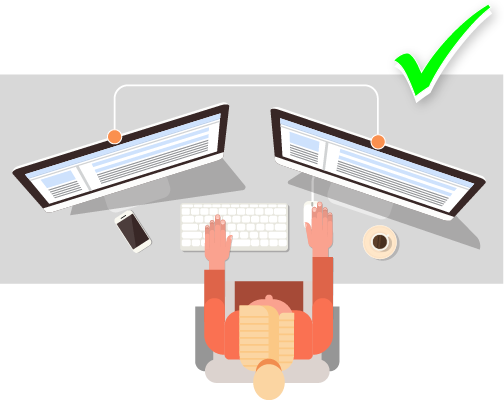
This is not a feature for Your convenience – it’s a crucial element of an online training setup. With so called “dual-head”, there are two displays connected to Your computer, allowing the user to have more space for application windows.
During the stationary training You move Your focus between Your laptop and an image from projector or a large TV. With two displays the training conditions do not differ that much: one with a conferencing app (e.g. Zoom) where You can see a trainer and his presentation, and the other one for Your app to practice.
We recommend against taking an online training with one display only. You will have a hard time constantly switching back and forth between the presentation and the task at hand.
If You decide to use two computers, (or computer + tablet) be sure to log in to training session on both devices.
Why? If You have some difficulties, instead of trying to verbalize the problem You’re facing, it’s much quicker just to share Your screen, or to invite the trainer to Your desktop to examine and solve the issue together right where You work.

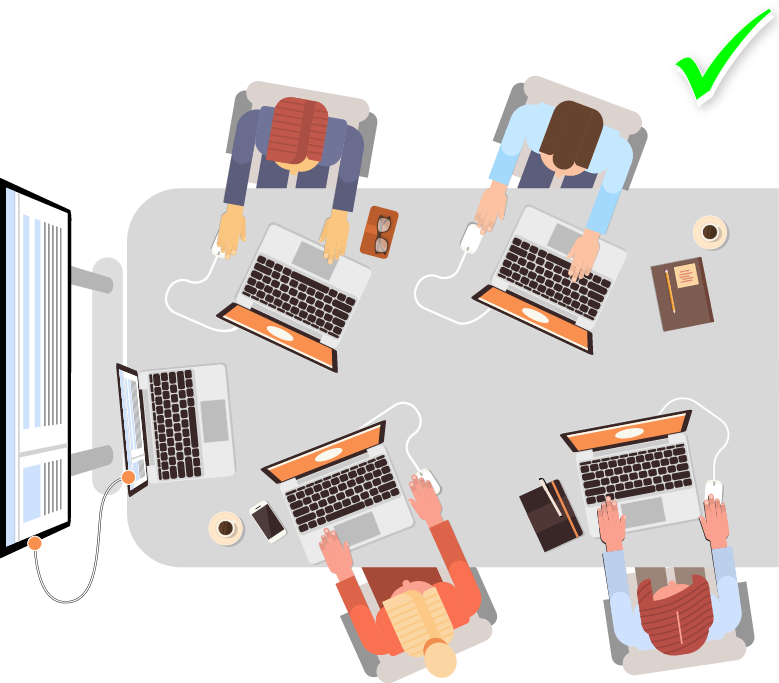
In this configuration, the trainees meet in a conference room, everyone works on his laptop, and the trainer’s presentation is visible on an overhead projector or a large TV. It’s a good idea to have each of the laptops additionally logged into the conference meeting as well (so that the trainer, if necessary, can look at the screen of the trainee asking a question via a remote desktop). With such an organization, sound is usually a problem: the moment one of the trainees, wanting to ask a question, activates the microphone, an unpleasant sputtering, echoing, squeaking, etc. is created. Usually one of the solutions (in order of the best) is checked:
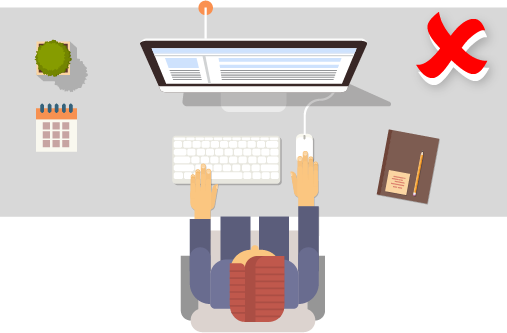
During an online training, having only one display, You have two unattractive options:
In our opinion an online training session with just a single display is a passive, disheartening and disappointing experience.
One display is OK, but only during standard stationery training, when a trainer and a group are together in the same conference room.

During online video conferencing, a microphone is an obvious necessity. Using headphones is optional if there is one person participating in the training in the same room. But if several people are sitting next to each other logged into the same online training session, then using headphones solves all potential audio problems.
All modern video conferencing applications (such as Zoom) automatically prevent infinite looping of sounds, echo, and other audio problems. However, in order to work properly, the conferencing application must control the speaker and microphone simultaneously. In short, this means that the same computer should act as “speaker” and “microphone.” For the reverse example, audio problems are bound to occur if, in the same room, one computer is the “speaker” and another computer is the “microphone.”
Although the extra wire on the desk may be a bit inconvenient, even cheap in-ear headphones solve all potential problems such as feedback, echo, repeated distorted sound.
There are two types of microphones: dynamic and condenser.
Condenser microphones are commonly used in laptops and in tablets. They are very, very sensitive. They perfectly pick up all the background noises, quiet conversations, even from another room. To protect the privacy of Your collegues, try to participate in an online meeting in a quiet room, if possible.
The other type of microphones, the dynamic microphones, behave differently: they are “deaf” to most of unwanted background noises, and sensitive only when You speak in it’s closest proximity. The necessity to keep to mic close to one’s mouth means that dynamic mics are separate devices, sometimes big and bulky, and You need to mount it a stand (a boom arm). The most affordable dunamic mic as of 2007-2025 is Samson Q2U, with decent quality and the micro USB socket, which allows to connect directly to the computer.
A fast broadband connection is the most reliable solution here. The bandwidth requirements are not that high (once the student was observing the last hour of training in her car, on tablet using mobile internet).
Principally, LAN cable is a more stable way to connect to a network than WiFi. In theory, if the WiFi signal is strong, there should be no problems…. but because of WiFi, one in twenty people complain of repeated forced disconnections and video freezing. Ditching WiFi in favor of a LAN cable solves the problems.
Some students use video meeting opened in web browser (eg. Zoom via Chrome browser). Such solution basically works, yet be wary that some functionalities may not be accesible – like the ability to quickly send files via chat. If possible, it’s always better to install dedicated standalone application.
Regardless of the training topic, have Your software checked prior to the training.
Some students seem to assume that the term "an application" means "an online service": a new bookmark, a new login, a new password. So let's state with great emphasis: application is a program You need to download and install locally on Your computer. Please, dont't wait until the very beginning of a training, and do check in advance the required apps we are going to work with.

Etiam magna arcu, ullamcorper ut pulvinar et, ornare sit amet ligula. Aliquam vitae bibendum lorem. Cras id dui lectus. Pellentesque nec felis tristique urna lacinia sollicitudin ac ac ex. Maecenas mattis faucibus condimentum. Curabitur imperdiet felis at est posuere bibendum. Sed quis nulla tellus.
63739 street lorem ipsum City, Country
+12 (0) 345 678 9
info@company.com